
How to review and download an image batch
Find a finished batch in My Creations, compare the individual outputs, and download the exact image you choose.
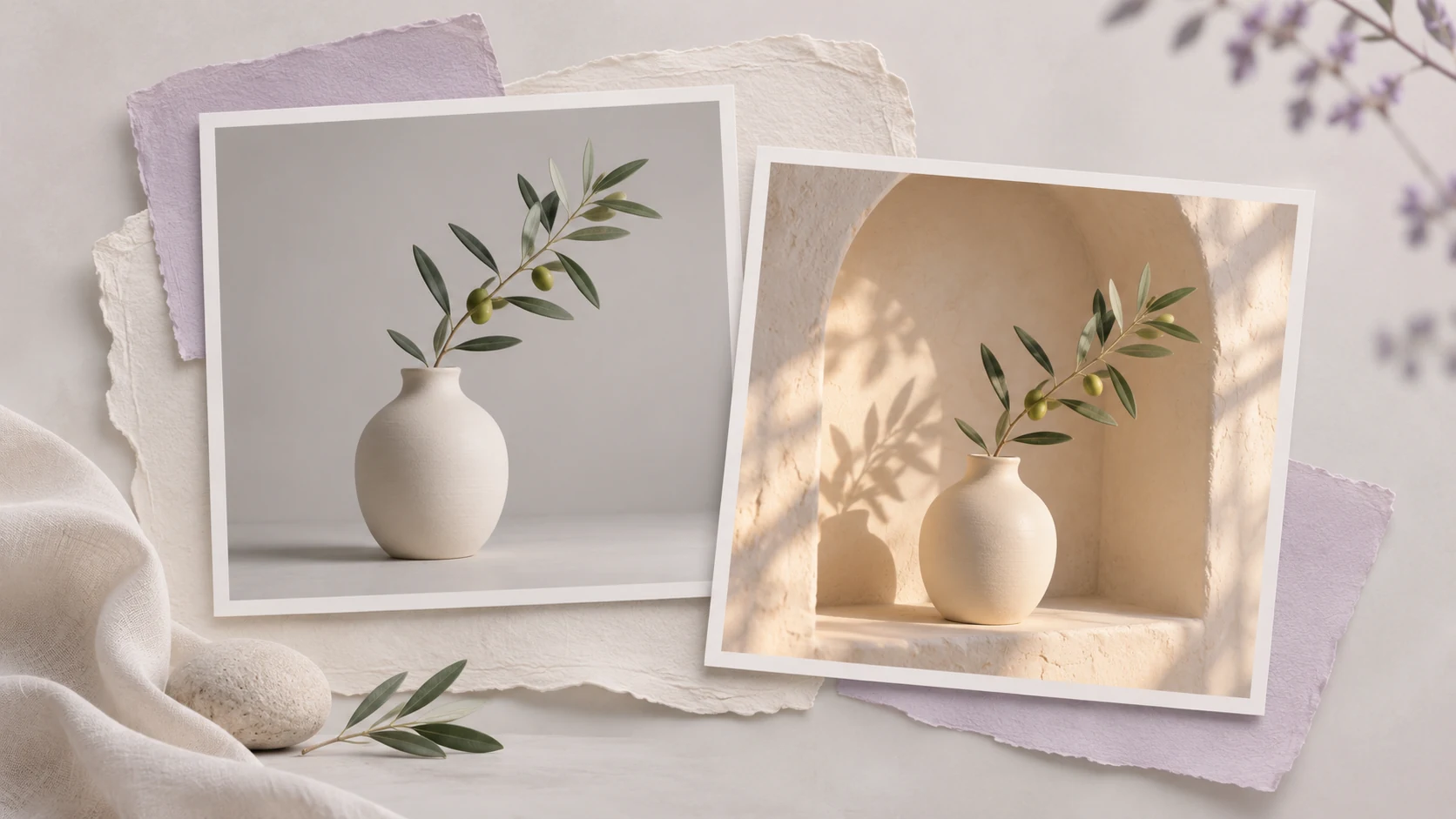
A generation can produce several images from the same request. The results are grouped in My Creations, so you can compare the images together and download the one that fits your project. This guide follows a two-image still-life brief and shows where to find each output.
1. Write a brief you can judge consistently
Open Image and describe a single subject with a clear composition. A short list of criteria makes comparison easier. For a vase listing, you might want a clear outline, accurate-looking texture, and a little space around the top so you can crop the result later.
Try this prompt:
text
Photograph a small matte blue ceramic vase on a warm gray tabletop, with a single white anemone leaning slightly right. Use diffuse window light, a soft shadow under the vase, and a simple ivory wall behind it. Frame the whole vase and flower with generous margins. Show the glaze texture without glossy highlights, and leave the image free of lettering.If the selected model and your plan allow a batch, set the image count to two. Check the total Cost shown beside Generate. Both images use the same request, and the amount of visual variation can differ between results.
2. Find the batch in My Creations
Click Generate after you check the settings. Once the request is accepted, the workspace shows it in history with a status such as Queued or Generating. You can also open My Creations from your account menu to return to it. Use the Completed filter if you have several requests in progress, or search for words from the prompt to find a previous job.
A completed batch has a cover image and an image count on its card. Open the card to view its cover in Creation detail. The thumbnail strip shows the other available images from that generation. Select a thumbnail to open the corresponding Creation and look for the image position indicator to confirm which output you are viewing.
3. Compare full images before choosing
Check the same details on each output. Look at the top of the flower, the rim of the vase, and the edge of the table shadow. A composition that looks good as a small card can reveal awkward edges or cropped details when opened. If you intend to put text beside the image, check the space around the subject as well.
For the vase brief, ask whether the object outline is clear, whether the glaze reads as matte, and whether the flower has enough room. Use those criteria to choose an output for the listing. You can keep the other result private and return to it later.
4. Download the selected image
With the desired image open in detail, choose the Download image icon near the close control. The browser saves that image as an attachment. If you use the download icon on a multi-image card in My Creations, its label is Download cover image and it saves the cover. Open the thumbnail you want before downloading a different result.
Check the downloaded file in your editor or file manager. Confirm that it is the intended variant, and check the actual file dimensions before placing it in a design. If a download shows an error, keep the Creation open and try the download again after checking your connection.
Common questions
Can I publish one image from the batch?
Yes. Select the image you want to share, open its Creation, and use Publish for that image. You can leave the other results private.
What does Delete do on the history card?
Delete on a batch card asks you to confirm removal of the whole generation. All its images are covered by that confirmation, including any that were published. If you only want a published image removed from Gallery, open that individual Creation and use Unpublish.
Where should I look if a request is still running?
Return to My Creations and check the existing entry. A slow response or a temporary connection problem can leave the status unconfirmed. Check that entry before submitting the same request again.