
Holiday Product Photography Prompts: Five Background Ideas
Try five holiday backgrounds for a real product photo, from an evergreen window scene to a gift-wrap table. Keep the item's color, label, and package contents accurate.
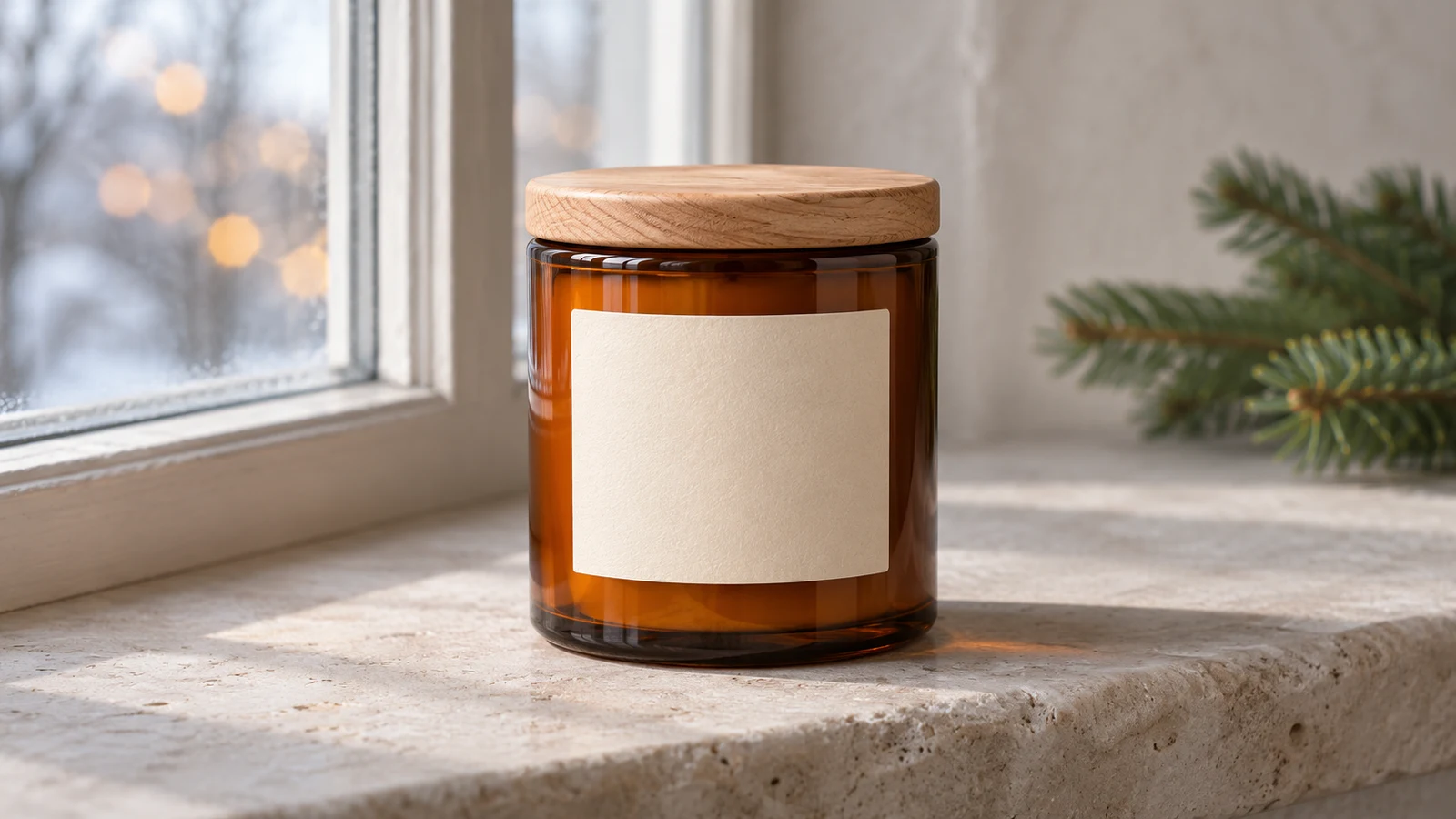
Cover study: a fictional amber jar sits in left-side window light, with an evergreen branch behind the focus plane. The AI-created editorial image illustrates the first background brief; it does not demonstrate preservation of a real product or label.
For a believable holiday product photo, choose the scene around the object and spell out what must stay the same. A window, ribbon, or paper backdrop can make a listing feel seasonal. The original product should still have the same silhouette, material, label, and included accessories. Use the original photo as your comparison whenever you review a result.
Adobe's October 2026 holiday marketing research emphasizes the value of preparing campaigns around when shoppers are ready. These five background briefs are designed to let you prepare seasonal variations around one source photo. They are original templates that have not been tested in More Muse AI.
Match the scene to the source photo
Begin with a sharp image you have permission to use. A simple background, visible product edges, and an unobstructed label give you a clear baseline for comparison. Before you write the prompt, identify the camera angle and the direction of the light. A warm window on the left looks more believable if the source is already brighter on that side.
Pick a background whose surface suits the object. A candle needs a stable base. A soft bag should cast a contact shadow where it meets a table. When a set design asks the model to change the object to make it fit, simplify the set first.
Five holiday backgrounds to try
1. Evergreen window for a candle or glass jar
text
Keep the reference jar, lid, label, fill level, and glass color intact. Set it on a pale stone sill in soft winter daylight coming from the left. Add a short evergreen branch in the far right background, behind the focus plane. Keep the jar upright and cast a soft contact shadow under it. No flame, snow inside the jar, or extra lettering.Inspect the rim and label. Reject invented reflections that hide the name or make a clear jar look frosted.
2. Kraft wrapping table for a boxed product
text
Place the exact reference box on a tan worktable with a cream paper roll in the upper background and a loose rust-colored ribbon beside the box. Match the printed label, box corners, size, and seal to the reference. Keep the ribbon clear of the label. Use a slight overhead angle close to the source. Do not add any items inside or on the box.If a ribbon ends up wrapped around the product, ask for it to sit farther back. This makes the distinction between packaging and scenery easier to see.
3. Warm mantel for a ceramic mug
text
Use the reference ceramic mug as the sole product. Preserve the glaze, handle shape, and surface pattern. Place it on a light wood mantel with small amber lights far in the background. Keep the full handle visible and use a softly lit side view. Leave the mug empty and leave space around its rim.Check whether the glaze looks like the original in neutral light. If the scene turns a cool mug orange, move the warm lights deeper into the background and ask for neutral light on the product.
4. Winter paper set for dark accessories
text
Show the exact reference accessory against a layered off-white paper backdrop, with one curved paper shape behind the product. Keep the finish, hardware, and proportions unchanged. Use a broad overhead light and a soft gray shadow so the object stays grounded. Keep the paper layers away from the product edges. No snow, glitter, or printed letters.This layout works when you want a seasonal tone without busy props. Zoom in on buckles, seams, or clips before approving the file.
5. Deep red shelf for a giftable bottle
text
Place the exact reference bottle on a muted cranberry shelf against a darker red wall. Keep the cap, visible liquid, product color, and original label unchanged. Put a folded cream card well behind the bottle and keep it blank. Use soft side light with a small highlight on the shelf, not across the label.Watch the bottle outline where its color meets the background. If the two blend together, lighten the shelf or shift the wall toward burgundy.
Use the diagram as a comparison checklist for any of the five settings. First inspect the rim, label and material against your source photo. Then check whether props sit behind the product and whether the contact shadow makes it rest on the surface. A convincing background cannot compensate for an altered product.
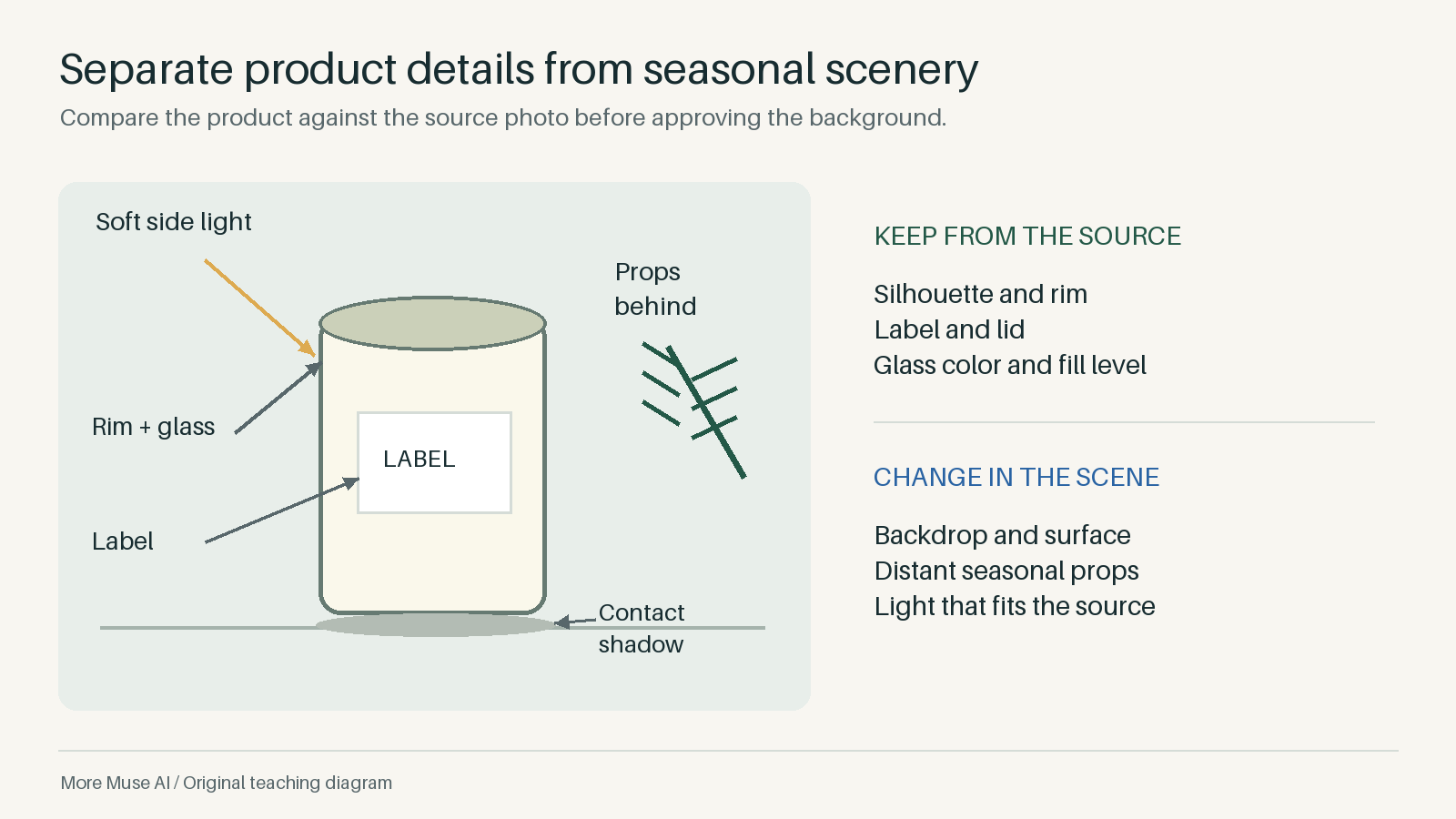
Compare the scene with the product
Open Generate in More Muse AI and choose a model with Reference Image. Upload one PNG, JPEG, or WebP, then paste and adapt one prompt. Pick the available Aspect Ratio that fits your listing or campaign slot. Review the displayed settings and Cost. If one detail changes in the first result, keep the original photo as your reference and simplify the instruction around that detail.
Find the result in My Creations and use Download. Check the actual dimensions and view the export next to the source at the same size. Review the label, seams, material, cap or handle, and any props that might look included in the sale. Keep the original product image if the generated version changes details shoppers rely on.
Common questions
Can I replace only the background perfectly?
Treat the prompt as a request to preserve the product, then compare the output against the original. Use a real photo or a manual composite if the exact pixels around a logo or label matter.
What if the product is reflective?
Start with soft light and fewer bright props. Review the color and the reflections across any label, display, or polished hardware.
Source
Adobe for Business — Holiday marketing calendar (https://business.adobe.com/blog/holiday-marketing-calendar-insights)