GPT Image 2.6 on More Muse AI
Use GPT Image 2.6 to create images from a prompt or work from a reference image. Choose a resolution, quality level, and output format for the job.
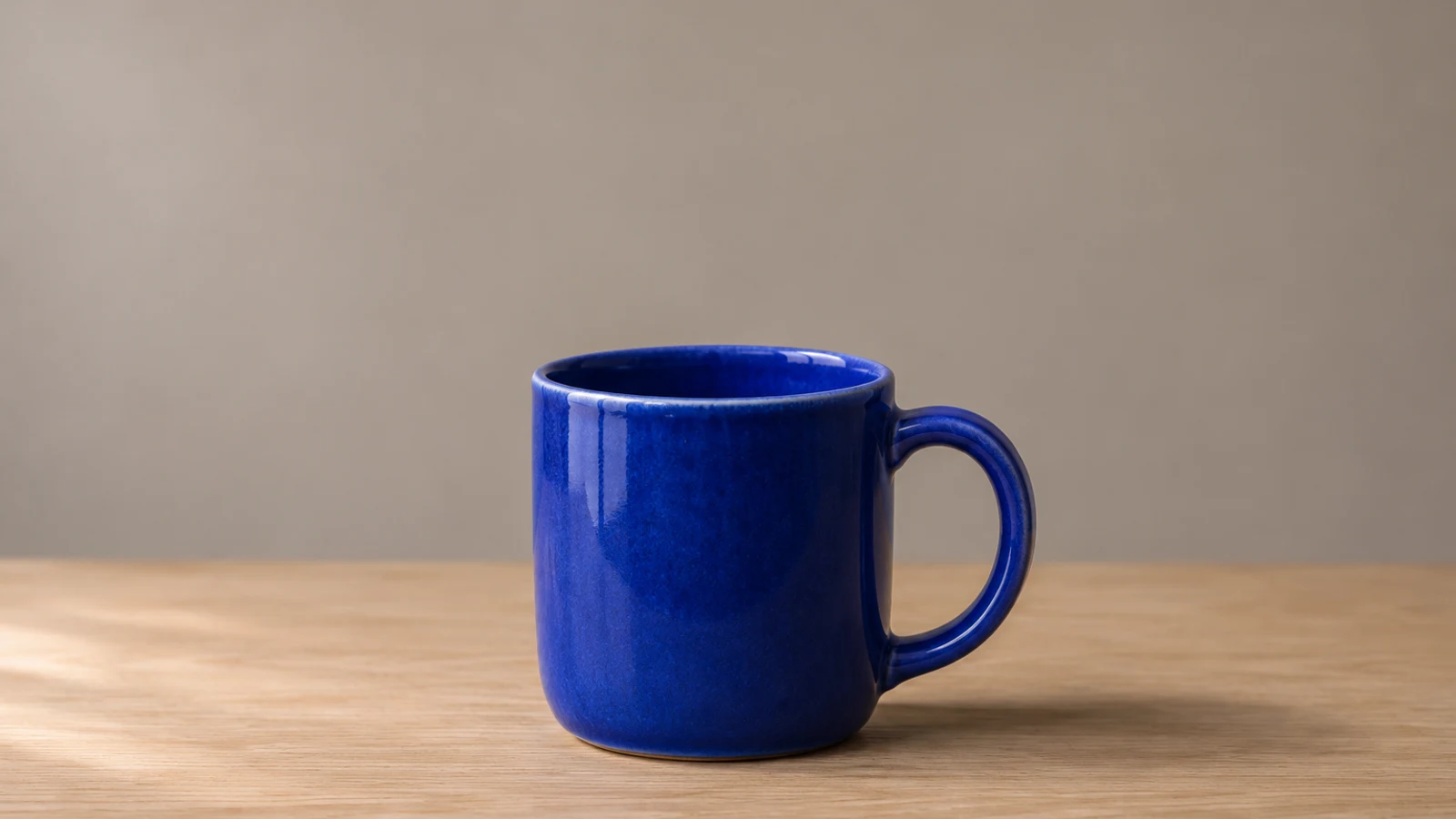
Cover study: a cobalt-blue mug, pale oak surface and soft left-side light visualize the prompt near the end of this guide. This AI-created editorial image was cropped for the cover; it is not a recorded GPT Image 2.6 generation or a verified square export.
More Muse AI supports OpenAI’s GPT Image 2.6 in the Generate workspace. If you’re on an eligible paid plan, choose GPT Image 2.6 in the model picker to create an image from a text prompt or use one reference image to guide the result.
Create your first image
- Open Generate and select GPT Image 2.6.
- Describe the subject, composition, lighting, and any details the image should preserve. Add a reference image if you want to guide the result with an existing visual.
- Pick an aspect ratio for where the image will appear, then choose a resolution and quality level. You can request up to four images in one task.
- Check the point total next to Generate before submitting. Compare the results and refine the prompt or settings for the next pass.
Choose settings for the job
Use Speed first in the Preference menu when you’re iterating on an idea, or Quality first when you’re ready to refine it. Complexity is a separate control with Low, Medium, and High settings. The Quality menu sets the output tier and offers Standard, Medium, High, Extra High, and Max.
Choose 1K, 2K, or 4K based on the size you need. The aspect ratio affects the final pixel dimensions. If you leave the ratio on Auto, More Muse AI uses square sizing.
Save as PNG, JPEG, or WebP. For a cutout you plan to place over another design, set Background to Transparent and choose PNG or WebP.
Estimate your points
The point total depends on resolution, output quality, and the number of images. A single 1K image costs 4 points at Standard, 7 at Medium, or 10 at High. At 2K, High costs 18 points per image.
A prompt to try
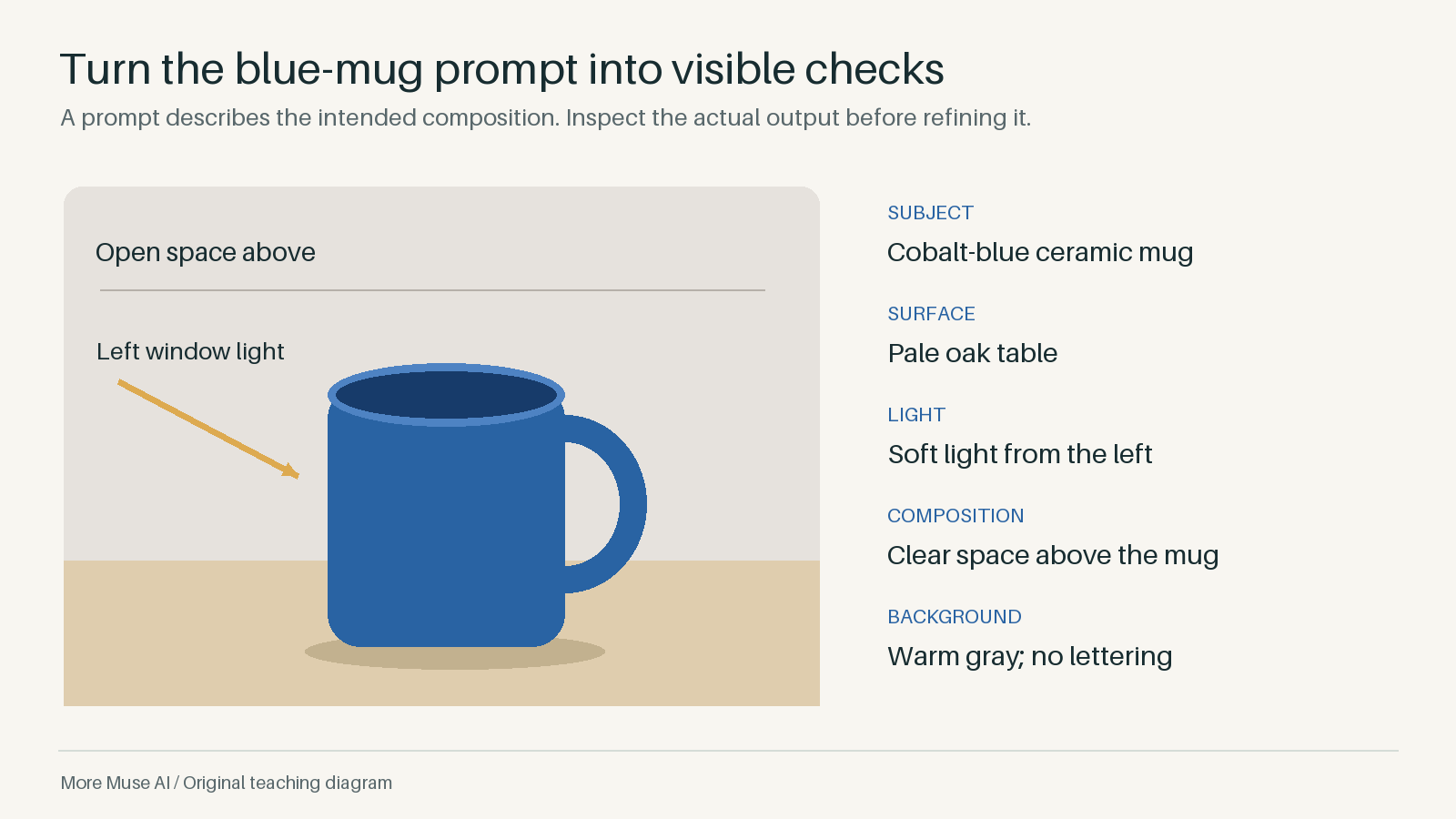
Create a square studio photograph of a cobalt-blue ceramic mug on a pale oak table. Use soft window light from the left and leave open space above the mug. Keep the background warm gray and omit text.
Read the prompt map before evaluating a candidate. Is the mug cobalt blue, is the table pale oak, and does the light come from the left? Check that the area above the mug remains clear and that no lettering was introduced. Change one instruction if a visible detail misses the brief.
Start at 1K Standard to check the shape, framing, and lighting. Once those look right, keep the prompt and raise the quality or resolution for the version you plan to use.