Black Friday AI Ad Prompts: Five Product Campaign Concepts
Create five Black Friday ad concepts from a real product photo. Copy the prompts, choose a layout for each placement, and add verified offers before publishing.
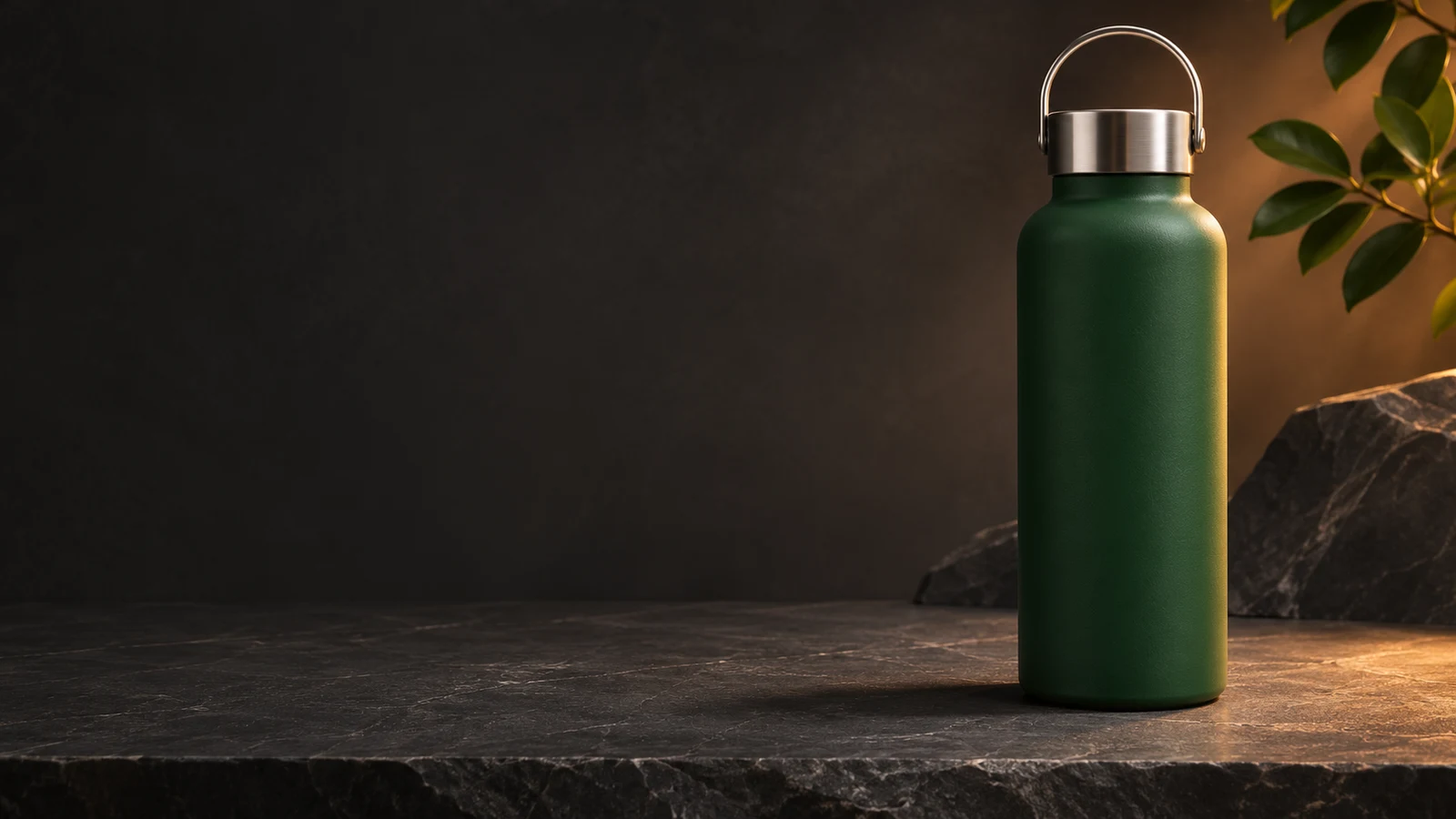
Cover study: the forest-green bottle sits to the right while the dark left side stays open for campaign copy. This AI-created editorial illustration explores the wide-hero composition; it is not a tested output from the prompts below.
Start with one photo of the exact product you are selling. In each Black Friday AI ad prompt, describe the product details to preserve, the campaign placement, and the area to leave open for copy. Then add your real offer in a design editor. That way you can reuse the image for an early preview, a live offer, or a reminder as the details change.
Adobe's 2026 holiday shopping forecast describes shoppers looking for discounts early in the season. That makes it useful to prepare a few distinct creative assets ahead of launch. The five prompts below are original starting points. They have not been tested in More Muse AI, and they do not predict ad performance.
Pick the placement before you write the prompt
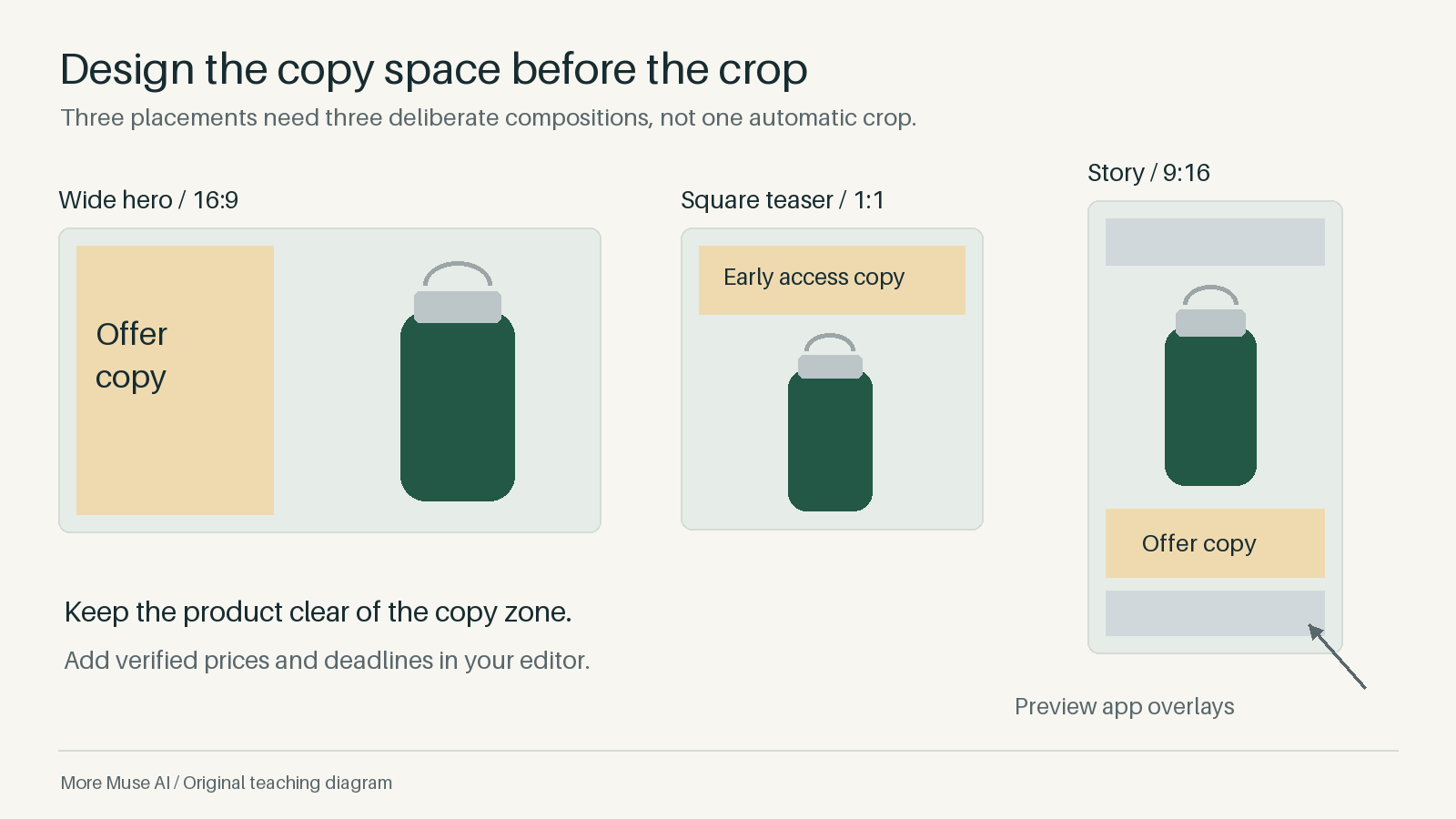
A wide hero needs a clear side for a headline. A square social ad needs room to read at thumbnail size. A portrait story image needs extra space near the top and bottom for the app interface. Choose a frame for the first placement and adjust the composition when you adapt it to another. Cropping the same file can remove the copy area you designed.
These examples use a fictional forest-green insulated bottle. Replace it with your product and replace the description of its fixed details. If the product has two different caps, use the version shoppers will actually receive as your reference.
Read the layout map as three separate briefs. Keep the bottle out of the highlighted copy zone, then add your approved offer in an editor. A portrait version needs its own composition and a preview in the destination app; it is not simply a crop of the wide hero.
Five prompts for different Black Friday placements
1. Wide storefront hero with a dark backdrop
text
Use the uploaded forest-green bottle as the exact product. Keep the cylindrical body, matte finish, silver lid, and loop handle unchanged. Place it in the right third on a charcoal tabletop with a small warm highlight along the right edge. Leave the entire left third dark and clear for an offer. Use a wide composition. No lettering, stickers, or extra bottles.Check that the highlight separates the lid from the background without making the green finish look black. Reserve the open side for a headline and one short line of copy.
2. Square early access teaser
text
Photograph the reference bottle upright on a slate-blue platform. Match the green body, lid, and handle to the reference. Put one folded sheet of cream paper behind the platform and keep the upper quarter plain. Frame the bottle with generous side margins. No words, gift tags, or discount badges.Use the free area for your verified early access message. Check the result at thumbnail size. The bottle should be recognizable before viewers read a word.
3. Portrait story with a clear lower zone
text
Create a portrait still with the reference bottle in the middle third, leaning only slightly if needed for the composition. Keep its handle, proportions, and finish intact. Use an indigo backdrop, a diagonal stripe of light, and an uncluttered lower third for overlay copy. Keep the bottle inside the central area so the top and bottom can be cropped. Do not add type.Preview the export in the destination app before sending it live. Move the headline or button if the app covers it.
4. Product detail for an email feature
text
Create a close-up still of the top half of the uploaded bottle from a similar angle to the reference. Show the silver lid, loop handle, and the seam where the lid meets the green body. Match the material and geometry. Use soft gray side light and a plain gray backdrop. No exploded components or invented markings.Use this only if the details match the actual bottle. If the handle or seam changes, use a real product crop for this placement.
5. Offer reminder with one obvious focal point
text
Keep the uploaded green bottle upright at center on a dark plum tabletop. Add one out-of-focus stripe of amber light behind it. Leave space above and beside the bottle for a short deadline line. Preserve the lid and handle exactly as shown. No countdown, price, lettering, or decorative products.Add the real deadline and time zone when the campaign is scheduled. To compare two versions, keep the offer and placement the same while changing one creative element such as the backdrop.
Generate and check the file in More Muse AI
Open Generate and choose a model that offers Reference Image. Add one PNG, JPEG, or WebP of your product. Paste your adapted prompt, select an available Aspect Ratio for the placement, and review the displayed Cost before you generate. If your layout gets crowded, shorten the list of props and make the position of the empty area more specific.
Open the result in My Creations and download it. Check the file dimensions, product color, and crop before adding approved prices or offer terms. Keep draft images private. To share a finished image in Gallery, use Publish and select a Category.
Common questions
Should the prompt include the discount?
Leave the exact offer out of the generated artwork if it will change. Add it in an editor and check it against the product page before publishing the ad.
Can I start without a product photo?
Use a text prompt to explore lighting or composition. For a product ad, compare the final visual with a real photo of the exact item and reject any misleading changes.
Source
Adobe Digital Insights — 2026 Holiday Shopping Trends (https://business.adobe.com/resources/holiday-shopping-report.html)